
Core workflow
Family tree
The tree is the heart of Racinage. It supports a horizontal canvas for relationship mapping and a vertical view for compact browsing.
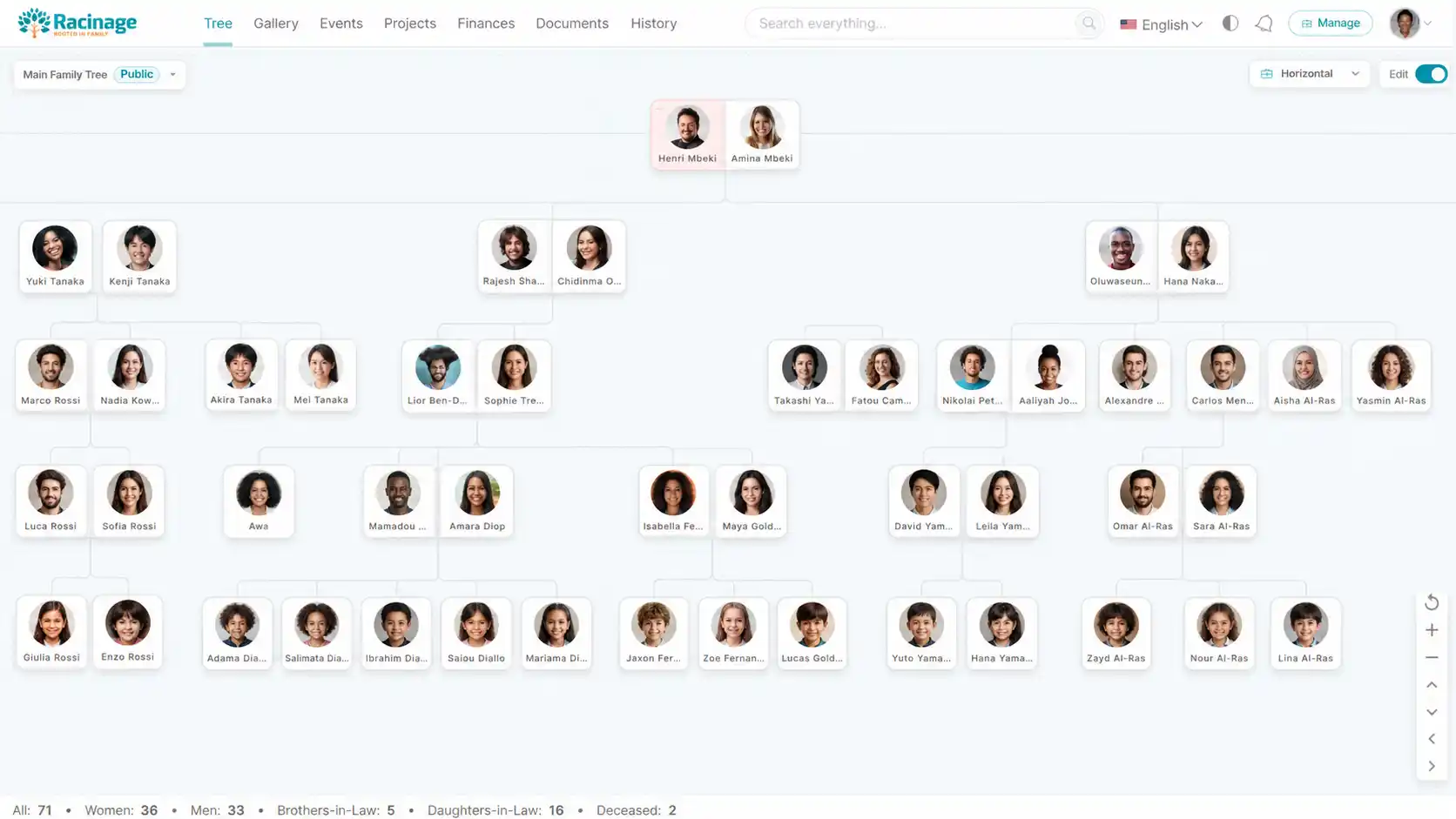
Tree layouts
Use horizontal view when editing relationships and visual spacing matters. Use vertical view when browsing a branch or opening profiles from a narrow screen.
- Horizontal: best for adding spouses, external partners, parents, and children.
- Vertical: best for scanning a branch and expanding or collapsing family sections.
- Reset view: returns the horizontal tree to the centered home position.
Adding people
Turn on edit mode, hover over a person or couple, and use the add controls. Racinage supports creating a new person or attaching an existing person who is not already in the selected tree.
This creates the first root of a new tree.
Use parents for ancestry and spouse for the main couple relationship.
Children appear below the parent or couple branch.
Spouses and external partners
A spouse is the current couple relationship in the main branch. An external partner represents another partner of one person in that couple. External partners and their children are placed beside the related person so sibling branches stay readable.
Profile actions
Click a person profile image or card to open the profile modal. Editors can replace, update, hide, mark dead or alive, and remove people according to their permissions.
- Hide: keeps the person in the structure but hides the visible details in the tree.
- Show: restores hidden details without rebuilding the whole tree.
- Mark Dead or Mark Alive: toggles the deceased marker and updates the deceased statistic.
- Remove: can remove only the person or remove their relationships, depending on the branch.
Large tree performance
Non-structural actions such as hide, show, mark dead, and mark alive update the visible cards in place. Structural actions such as adding a child or removing a relationship still refresh the tree because the branch shape changes.